
How to Add Love Kettering Hub to Your Home Screen
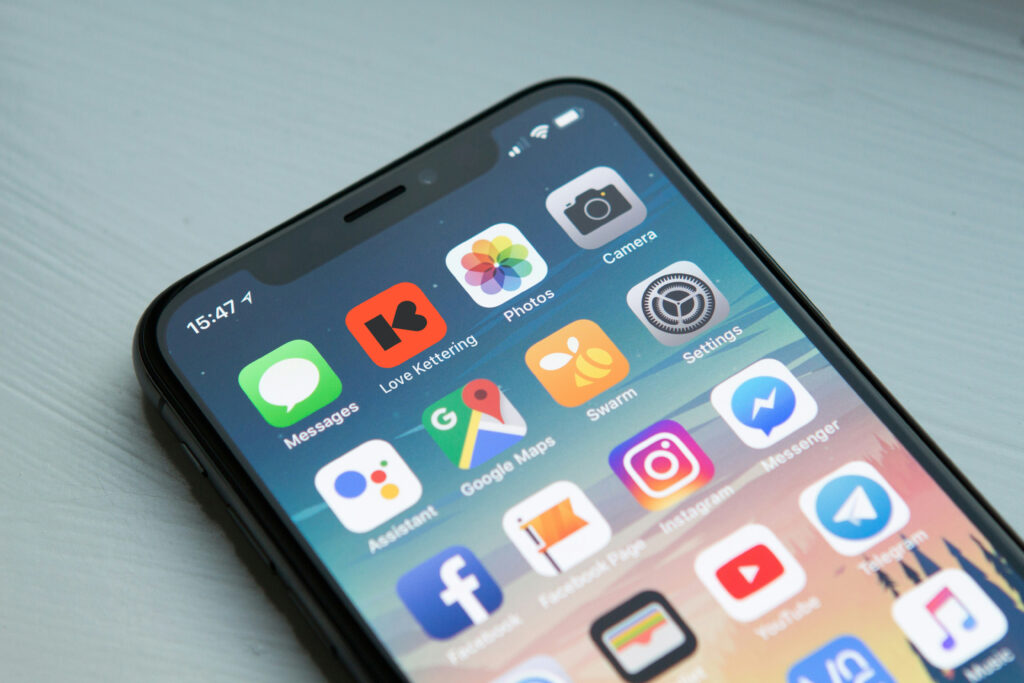
Want quick, one-tap access to the Love Kettering Hub? You can add it to your phone’s home screen just like any other app — no app store required! Follow the simple steps below for your device.
Before You Begin: Go Back to the Home Screen First
Before you start, make sure you navigate back to the Love Kettering Hub’s main home screen in your browser. You want the shortcut to open the hub at the right place, so don’t add it from a deep page or article — head to the homepage first, then follow the steps below.
iPhone & iPad (Safari)
Apple devices use Safari as their built-in browser. The steps below work on iOS and iPadOS.
- Open Safari and go to the Love Kettering Hub homepage.
- Tap the Share button at the bottom of the screen — it looks like a box with an arrow pointing upward (↑).
- Scroll down the Share menu and tap “Add to Home Screen”.
- You can edit the name if you like, then tap “Add” in the top-right corner.
- The icon will now appear on your home screen, ready to use!
Note: This only works in Safari. If you’re using Chrome or Firefox on iPhone, you’ll need to switch to Safari first.
Android (Chrome)
Most Android phones use Google Chrome as their default browser, and it makes adding shortcuts very straightforward.
- Open Chrome and go to the Love Kettering Hub homepage.
- Tap the three dots (⋮) in the top-right corner to open the menu.
- Tap “Add to Home screen”.
- Give the shortcut a name (or keep the one suggested), then tap “Add”.
- Depending on your device, you may be asked to confirm by tapping “Add” again or dragging the icon to your home screen.
The Love Kettering Hub shortcut will now appear on your home screen just like an app!
Android (Samsung Internet)
If you use a Samsung phone, you may have Samsung Internet as your default browser instead of Chrome.
- Open Samsung Internet and go to the Love Kettering Hub homepage.
- Tap the menu icon (three horizontal lines) at the bottom-right of the screen.
- Tap “Add page to”, then select “Home screen”.
- Confirm the name and tap “Add”.
Your shortcut will appear on your home screen straight away.
Other Android Browsers (Firefox, Edge, etc.)
If you use a different browser on Android:
- Firefox: Tap the three dots menu → “Install” or “Add to Home screen”.
- Microsoft Edge: Tap the three dots menu → “Add to phone” or “Add to Home screen”.
The exact wording may vary slightly depending on your browser version, but look for an option that mentions “Home screen” or “Install”.
That’s It!
Once added, you’ll have a handy icon on your home screen that takes you straight to the Love Kettering Hub with a single tap. No searching, no typing — just instant access to everything going on in Kettering.
If you run into any trouble, feel free to get in touch with us and we’ll be happy to help!